See what it does
A quick tour of what you can do.
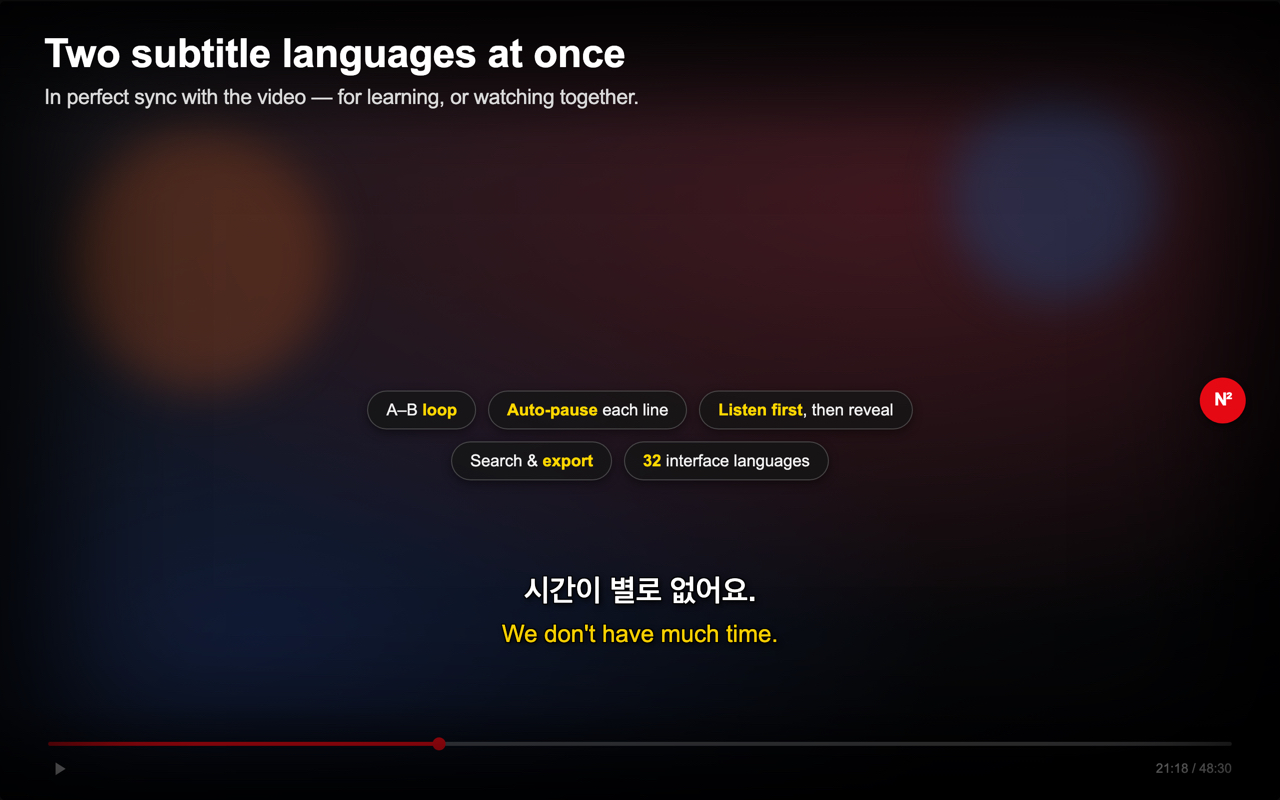
Two languages, side by sideuse case ›
See both languages at once, each timed to the video — read your target language with a translation right below. Great for learning, or for watching together when two people prefer different languages.
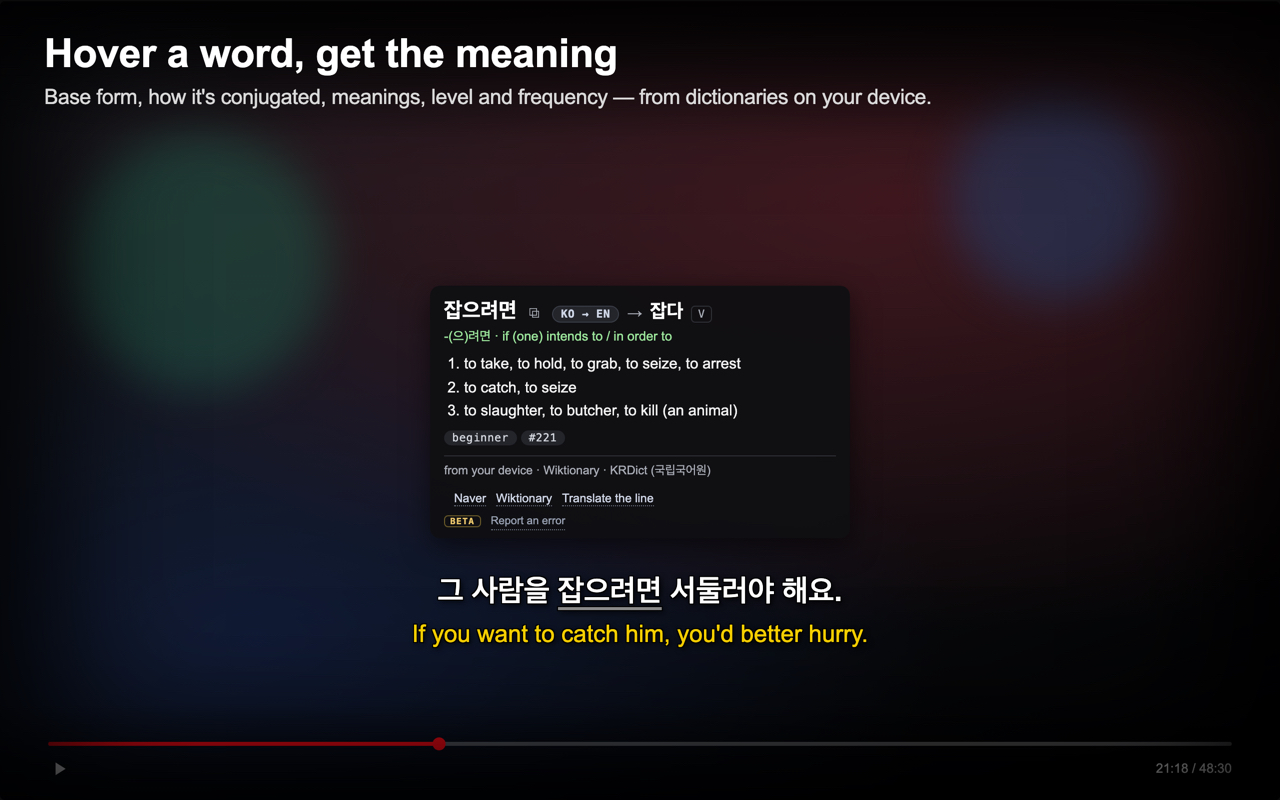
Hover a word, get the meaninguse case ›
Point at any subtitle word and a popup explains it without leaving the video — the base form and how it's conjugated, the meanings, how common it is, hanja with each character's meaning. Korean ↔ English and English built in, eight more languages → English to download; every language gets dictionary links and, if you switch it on, Chrome's on-device translation of the word in its line. New, so tell me when an entry looks wrong.
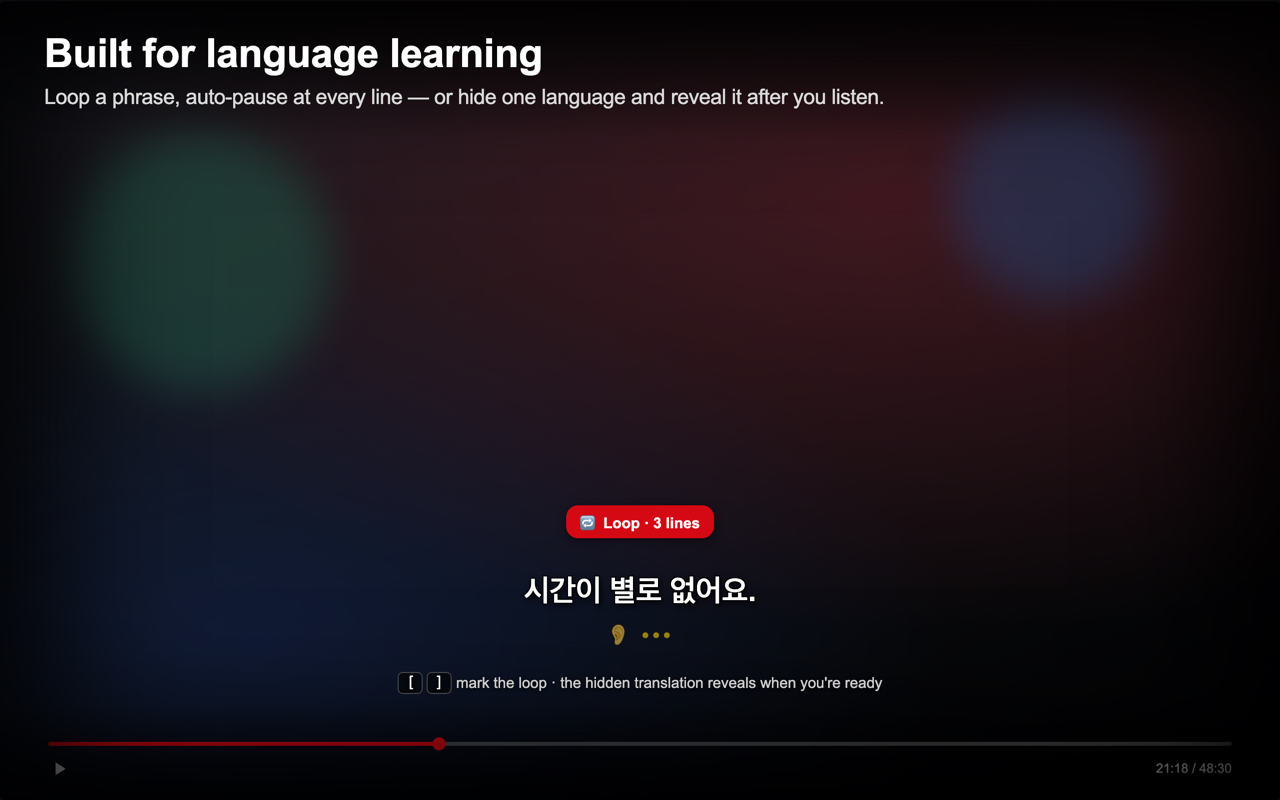
Learn at your own paceuse case ›
Hide a language until you've listened, show it just before the line ends, auto-pause after each line, or hear a line twice. Mix the settings that fit how you study — no flashcards, just the show.
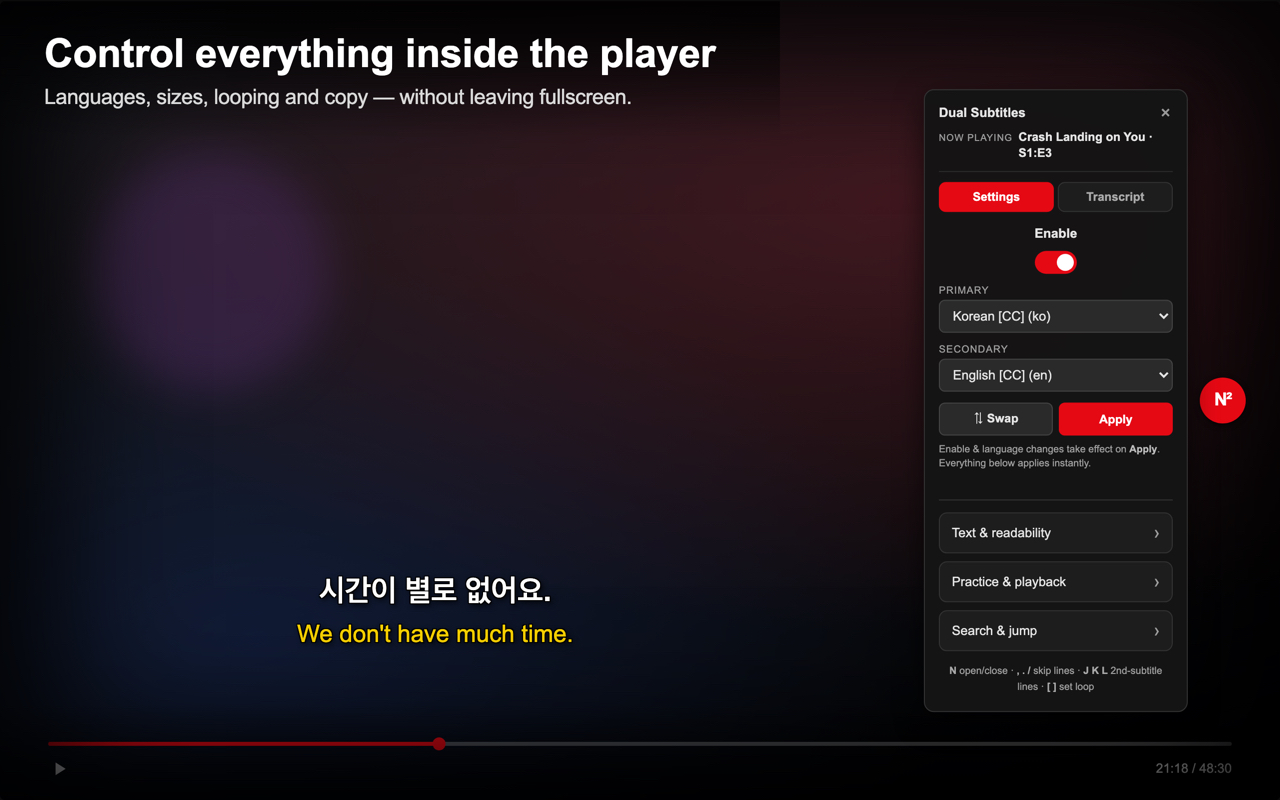
Controls, right in the playeruse case ›
Pick your two languages, change playback speed from 0.25× to 4×, and toggle everything from a panel inside Netflix — no leaving the video, no separate window.
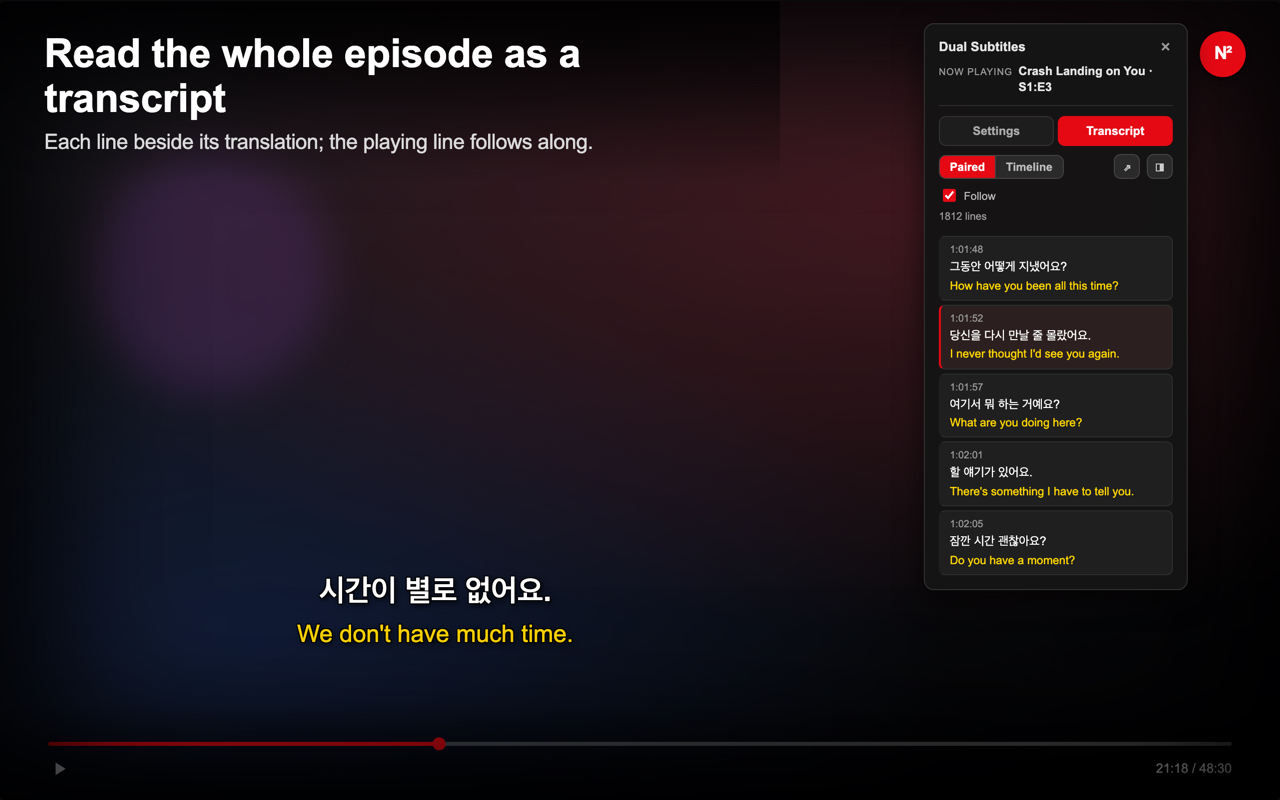
The whole scene as a transcriptuse case ›
Read the dialogue as a scrolling transcript. Click any line to jump straight to that moment in the video, or click a word to copy it for your notes or a dictionary.
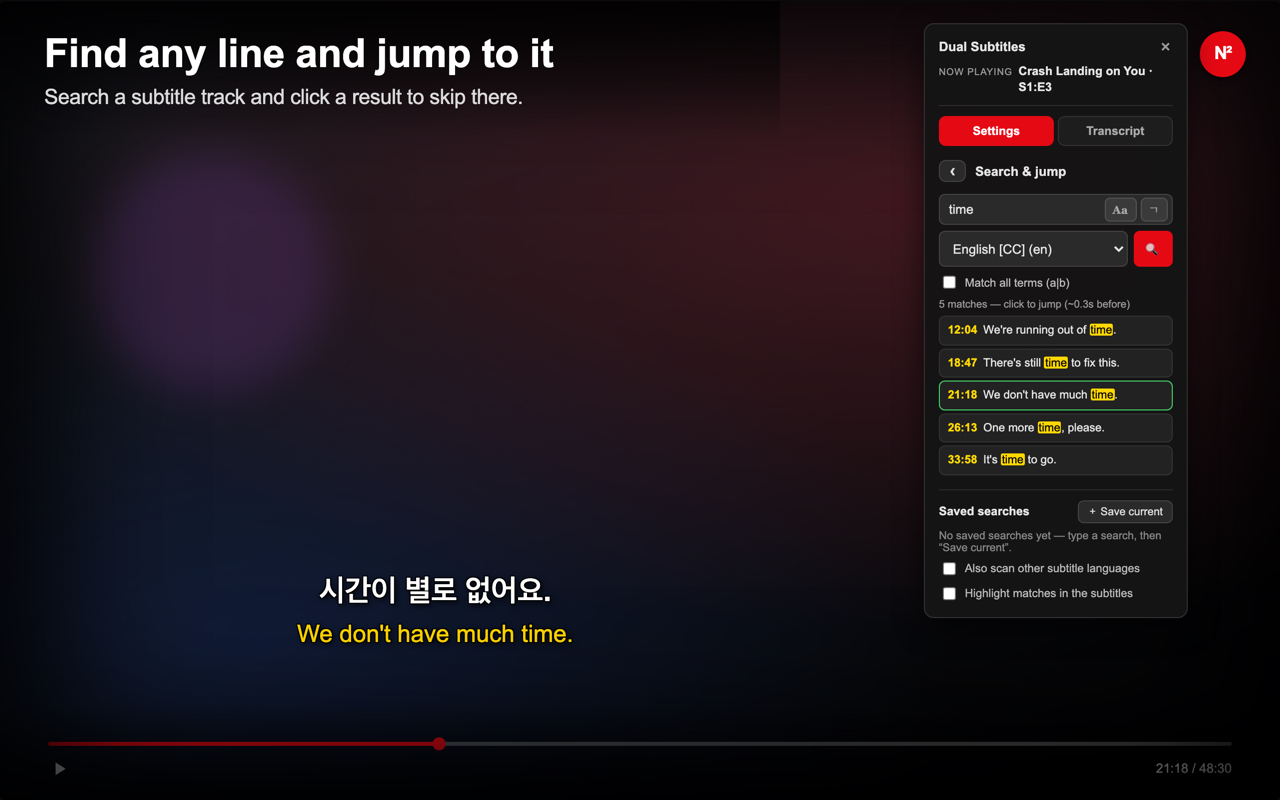
Search the subtitles, jump to the lineuse case ›
Looking for a phrase or a grammar pattern? Search the whole episode's subtitles and jump to any match. Save a search and every matching line lights up as you watch — then play only those lines, each repeated the way you set.
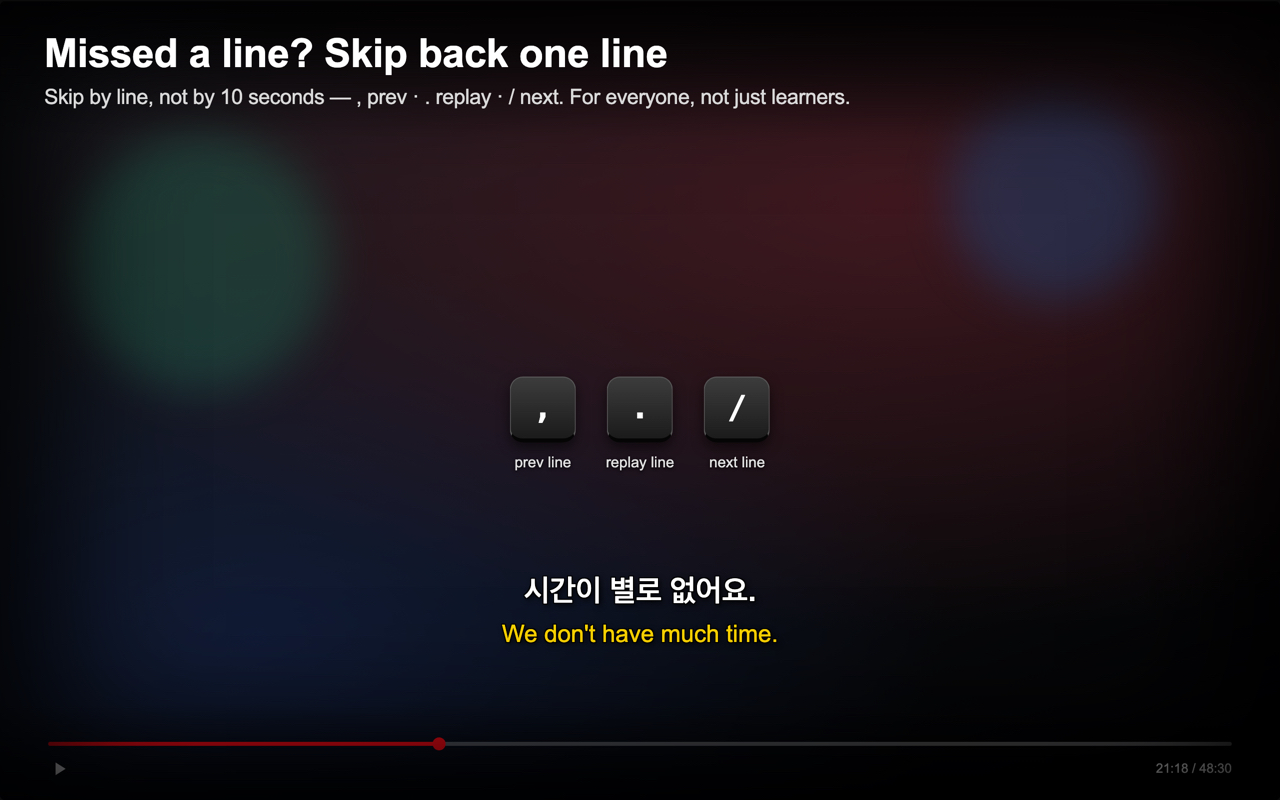
Replay a line — not 10 secondsuse case ›
Missed what they said? Jump back one subtitle at a time with a keypress instead of scrubbing — or loop a tricky phrase between two points (A–B) until it sticks. Handy for everyone, not just learners.
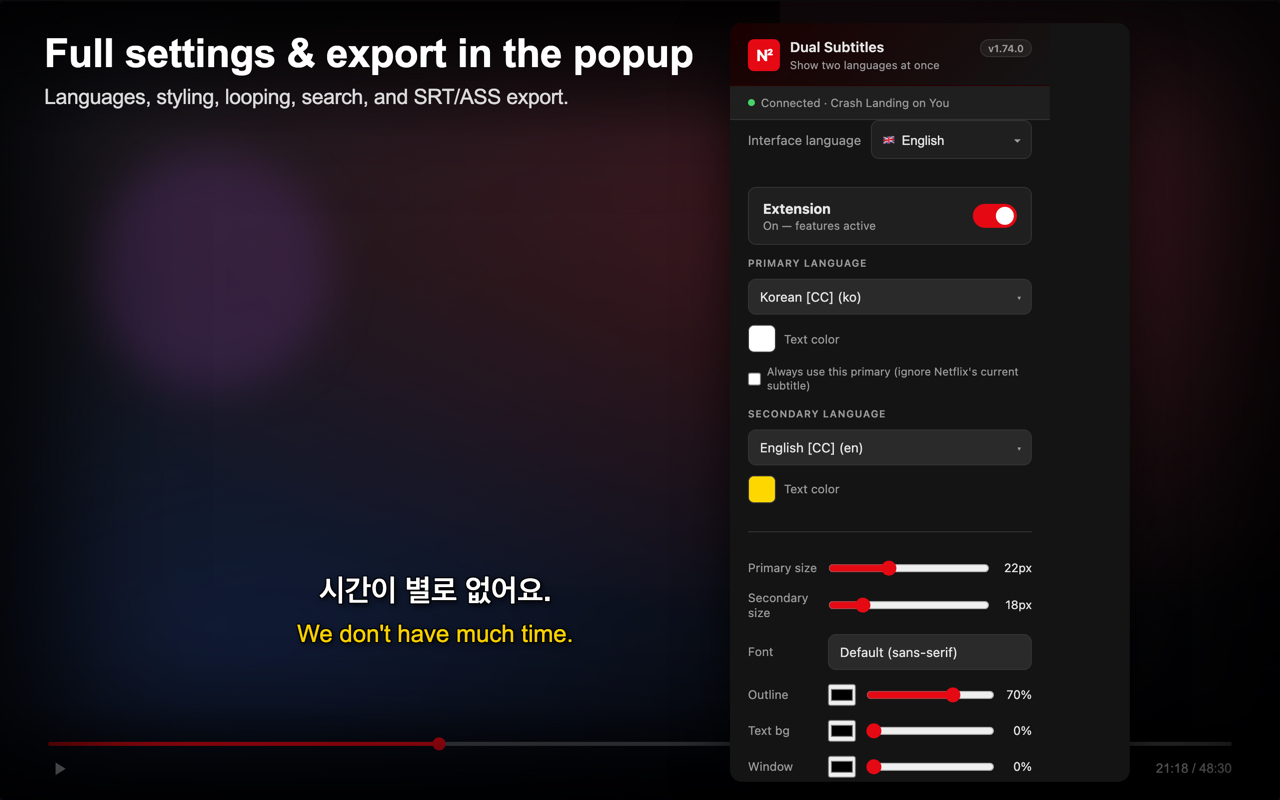
Export and make it yoursuse case ›
Export subtitles as SRT or a dual-language ASS file, manage your languages, and adjust how everything looks — size, colour, position, even a dyslexia-friendly font — all from the toolbar popup.
Why it's different
Real subtitles, not AIUses Netflix's own professionally-made subtitles, so the words and timing are right — not machine or AI translation that drifts out of sync.
Completely privateEverything runs in your browser. No account, no login, no servers — nothing is ever tracked or uploaded.
Free, no limitsNo ads, no in-app purchases, no daily caps, no sign-up. Install it and watch.
Everything in the box
- Two languages on screen at once, each timed to the video — pick a primary and a secondary.
- Uses Netflix's own subtitle data — accurate text and timing, no machine translation.
- Follows Netflix's own positioning — top-of-screen lines stay at the top, not stuck at the bottom.
- Pop-out mini player — a small always-on-top window that keeps both languages in view while you use other tabs or apps, with play, line-replay and episode controls. It can open by itself when you leave the Netflix tab, and optionally show the video too.
- Skip by line, not by 10 seconds — jump back, replay, or go forward one subtitle at a time.
- Language-learning tools: loop a phrase, auto-pause at each line, and hide a line, then show it once you've listened.
- Ready-made setups — Casual co-watch, Learning, Listening practice, Hear it twice — and save your own under a name.
- Loop an A–B section, with gold pins drawn right on Netflix's progress bar.
- Search the whole episode for a word or grammar pattern and jump straight to any hit — it even finds fused Korean endings.
- Keep a grammar watchlist — saved patterns light up in the subtitles as you watch, each in its own colour — then play only those lines, once, a few times, or until you stop.
- Read the whole scene as a transcript — click any line to jump there; dock it beside the video or pop it out.
- Hover-a-word dictionary (beta) — the base form and conjugation, meanings, idioms spotted in the line, learner level and frequency, hanja with each character's meaning; Korean ↔ English and English built in; Japanese, Chinese, Spanish, French, German, Italian, Portuguese and Russian → English and more downloadable; every language gets dictionary links, plus optional online lookup, on-device translation or your own key, each off until you switch it on.
- Click or drag to copy a word or phrase, straight into your notes or a dictionary.
- Playback speed from 0.25× to 4× — panel, keyboard, or Netflix's own speed menu.
- Export subtitles — one language as SRT, a merged file, or a dual-language ASS that keeps each language's exact timing.
- Full styling — per-language size and colour, outline, background, a window box, and a dyslexia-friendly font — with one-tap settings backup.
- Interface in 32 languages (Arabic and Hebrew display right-to-left), separate from the subtitle language.
- Runs entirely on your device — no account, no servers, no tracking.
- Free, with no ads, no in-app purchases, and no usage limits.
Want the full tour?
The guide explains every screen and every control — what it does, when to reach for it, and how the settings combine — with short clips and ready-made setups by use case.
Read the guide →On the roadmap
Ideas I'm exploring — no promises on timing.
Subtitle timing offsetNudge subtitles a little earlier or later when a track drifts — or to show them just after the speech, as a listening aid.
More dictionary languagesPacks for more subtitle languages and interface languages, as good sources turn up.
Whole-series searchSearch subtitles across every episode of a show at once.
Want one of these sooner, or something that isn't here? Tell me below.
Not what you're looking for?
Tell me your use case and I'll see if I can add it. Bugs, ideas, and feedback are all welcome.
Latest version: v1.110.2
Unofficial extension — not affiliated with or endorsed by Netflix.