Get started
Three steps. That's the whole thing.
Play any Netflix video and let it start.
Click the N² button (or press N) to open the panel.
Pick your two languages, then hit Apply.
That's it — you're watching in two languages. Everything below is optional: dip in when you want to learn hands-free, hunt grammar, or restyle the subtitles.
Where's the button? A floating N² sits in the corner of any Netflix video — click it (or press N), and drag it anywhere you like. Don't see it? Click the extension's icon in your browser toolbar.
Good to know: it runs in desktop browsers (Chrome and Edge) and shows Netflix's own subtitle tracks, so you can pair any two languages Netflix offers for that title — nothing is machine-translated, so a language Netflix doesn't provide can't appear.
See it in action
Short loops of the real extension — each one changes one thing (a language, a size, a hide, a loop) so you can see exactly what that control does on screen.
How settings combine
The real power is mixing controls. Each clip shows the recipe (the gold chip) and what it does — watch one setting change how another plays.
More combinations (8)
↓ Or explore by use case — the clip in a card shows the panel being set up for it, then the on-screen result.
Watch
Read your target language — the one you're learning — with a translation right below, or watch with someone who prefers a different language. Both come from Netflix's own subtitles, so the text and timing are real, not machine translation. In the panel these two lines are labelled Primary (the top line) and Secondary (the translation beneath). ▶ watch the clip
Tap , to jump back one subtitle — not a blind 10 seconds. Replay with ., go forward with /. Great for everyone, not just learners.
Press ⧉ in the panel to pop both languages into a small always-on-top window — keep reading while you reply to a message or take notes in another app. It has its own play/pause, line-replay and ‹ › episode buttons, pauses while you hover so you can copy a word, and can even open by itself whenever you leave the Netflix tab (Chrome asks once). A 🎬 toggle experimentally brings the video picture along too.
Learn a language
Hide a line so you only hear it, then show it to check. Choose which side hides and when it comes back — before the line ends, on pause, or on hover. ▶ watch the reveal
Repeat each line automatically before moving on — hidden the first pass, shown the second. One tap via the presets (Casual co-watch, Learning, Listening practice, Hear it twice), then tweak anything. ▶ watch the clip
Mark A and B (or press [ ]) and loop that stretch until it sticks — with an optional pause between repeats. ▶ watch the clip
Auto-pause at the end of each line so the text stays up while you read, then resume by itself after a few seconds — no reaching for the keyboard.
Look up a word (beta)
Turn on Word lookup (panel → Learning, or the popup) and hover any subtitle word. The popup shows the base form and how the word is conjugated (먹었어요 → 먹다, past · polite), the meanings, a learner level, how common the word is in film and TV, and hanja with each character's meaning; an idiom around the word in the line ("crock of shit" when you hover "crock") is shown first. Click the word to pin the popup, Esc closes it; it works in the transcript and the mini player too.
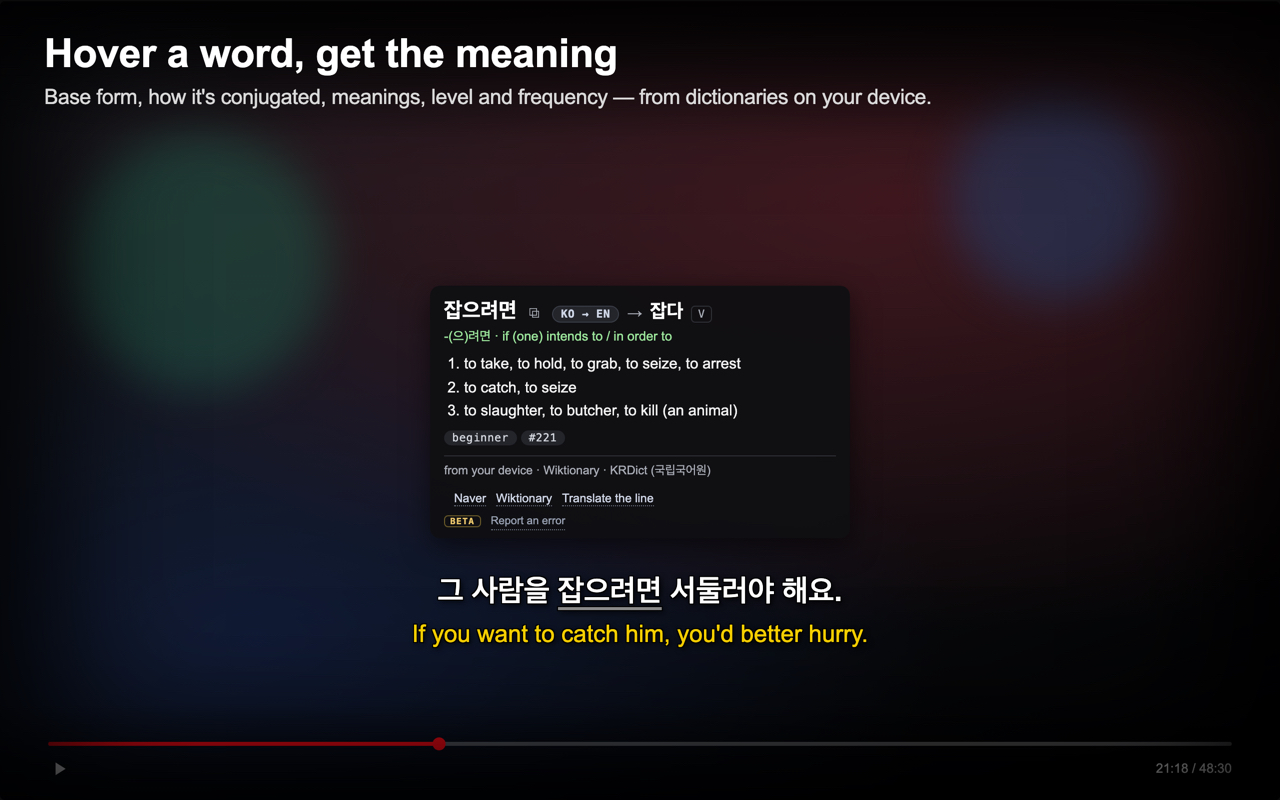
Korean ↔ English and English → English are built in. Manage packs (panel or popup) downloads more: Japanese, Chinese, Spanish, French, German, Italian, Portuguese and Russian → English, Japanese → Japanese, Korean → Korean, small Korean-explanation packs for Japanese, Chinese and Spanish words, the National Institute of Korean Language's learner's dictionary, the full standard dictionary and complete editions — and shows what's on your device. A language with no pack: the popup gives you Naver, Wiktionary and Google Translate links, and the on-device translation below covers the word in its line. Nothing is sent anywhere; the packs are read from your device.
Words are explained in your interface language by default. Hold Shift while hovering, or click the language chip in the popup, to flip to the other track's language — English glosses for a Korean line, Korean for an English one.
Also look up online asks Wiktionary-based sites when your dictionaries have no entry, jotoba.de first for Japanese (only the word is sent); a separate switch can add Google Translate as a last resort, marked as machine translation. Translate the word in its line uses Chrome's built-in translator on your device. Your own key (DeepL or an AI provider) explains the word in context — the key stays on your device, and only that provider sees the word and its line. Naver and Wiktionary links open inside the panel.
It's new. Every popup ends with Report an error: say what looked off and the word, its line and what the popup showed come along — nothing else, and only when you press Send.
Hunt grammar, then drill it
Search a word, phrase, or ending across the whole episode and jump to any hit. Wildcards with *; it even finds a Korean ending fused inside a syllable (ㄹ까 finds 할까).
Save a search to your list and every line it matches glows as you watch — each saved search its own colour. Perfect for the grammar point you're learning this week. ▶ watch the clip
Turn a search into a run: Play only these lines plays just the matching lines, each the way the search settings say — repeated, hidden then shown, skipping straight from match to match — and the line under the button spells it out. Those settings open beside the panel from How these lines play › and are kept separately from how you watch (see the map below). One more tap (Stop, play everything) gives your own controls back.
Every saved search has its own 🎧 — play only that pattern's lines, straight from its row.
Play only the saved searches’ lines runs every saved pattern in one go — by video timeline, or pattern by pattern down your list — once, a few times, or until you stop (Order and Play the set, in the search settings).
Read & take the words with you
Open the transcript, click any line to jump straight there, and dock it beside the video or pop it into a floating window.
Click or drag over the on-screen subtitle to copy a word or phrase — straight into your notes or a dictionary.
Save one language as .srt, a merged file, or a dual-language .ass that keeps each language's exact timing.
Make it yours
Make your target language larger than the translation — or lock the two sizes so they scale together. ▶ watch the clip
A dyslexia-friendly font, your own colours, an outline or box behind the text, and lift the subtitles above captions burned into the video. ▶ watch the clip
Set playback anywhere from 0.25× to 4× — including past Netflix's own 1.5× limit. ▶ watch the clip
The whole interface speaks 32 languages (right-to-left too). And the ? in the panel shows a one-line tip under every control.
Keyboard shortcuts
| N | Open or close the panel |
| , | Previous subtitle line |
| . | Replay this line |
| / | Next subtitle line |
| J K L | The same three, but stepping by the second language's lines — its timing can differ |
| Shift+< > | Playback slower / faster |
| [ | Set the A mark (loop start) |
| ] | Set the B mark (loop end) |
These are the defaults. The panel shows a live version that updates if you move line-skip onto the arrow keys.
Yours & private
Runs entirely on your device — no account, no servers, no analytics. The only things that ever leave are what you type into the optional feedback form or a word popup's error report, and the word-lookup extras you switch on yourself (online lookup, your own key). Privacy policy.
Every feature, every title, as much as you like — no ads, no subscription, no daily caps. Not what you need? Send feedback and tell me your use case.
If something's not working
- Subtitles don't appear?
- Make sure the video has actually started playing and Netflix has at least one subtitle track loaded, then press Apply.
- Your language isn't in the list?
- It shows Netflix's own subtitles for that title. If Netflix doesn't offer a language there, it can't be shown — nothing is machine-translated.
- The title is stuck on “Detecting…”?
- Give it a moment after the video starts; if it sticks, reload the tab.
- On your phone or TV?
- It's a desktop browser extension — it won't run in the mobile or TV Netflix apps.
- Still stuck, or a title won't load?
- Send feedback with the title's name or link and I'll take a look. Send feedback →
Unofficial extension — not affiliated with or endorsed by Netflix.